> ## Documentation Index
> Fetch the complete documentation index at: https://docs.zayo.com/llms.txt
> Use this file to discover all available pages before exploring further.
# Cloud Router connection to AWS Direct Connect
When attached to a Cloud Router, your AWS Hosted Direct Connect can be share a routing domain with other cloud links and virtual circuits.
## Prerequisites
Before you begin, ensure you have:
* An active AWS account with permissions to accept Direct Connect connections
* A DynamicLink port with available bandwidth
* Your AWS account ID (12‑digit number)
## Step 1: Create the Cloud Router connection in DynamicLink
Navigate to **Build Your Network > Ports** in the DynamicLink portal.
Under **Connections**, click the **Cloud Router** vertical tab.
Select **Cloud Connection** and then AWS:
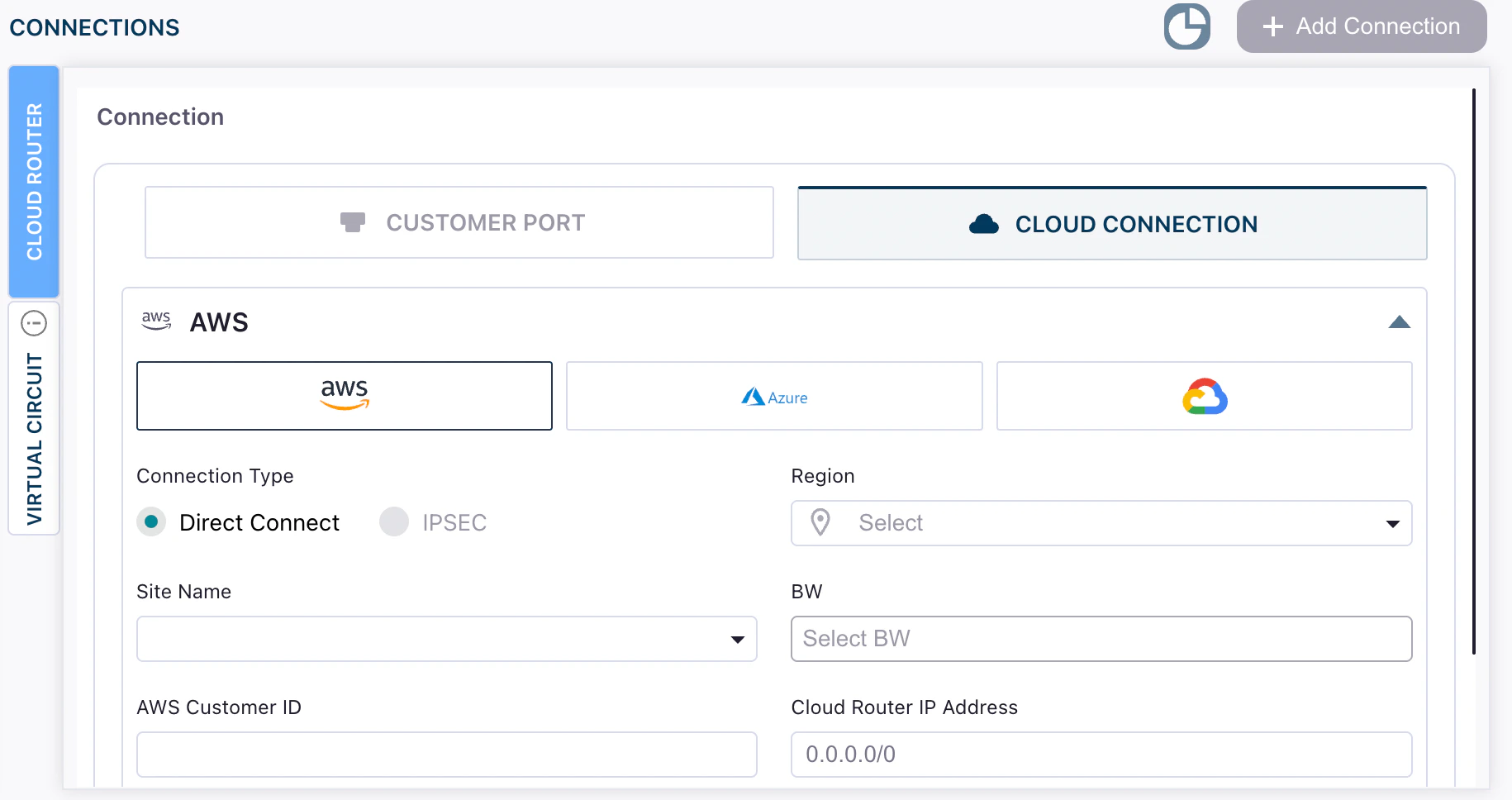 Complete the following fields:
| Field | Description |
| --------------------------- | --------------------------------------------------------------------------------------------------------------------------------------------------------------------------------------------------------------------------------------------------------------------------- |
| **Connection Type** | At this time, we only support Direct Connect connections. |
| **Region** | AWS region of your VPC (e.g., `us-east-1`). |
| **Site Name** | An available site for the chosen region. |
| **BW** | Desired bandwidth for the Direct Connect link. |
| **AWS Customer ID** | Your AWS account ID (12 digits). |
| **Cloud Router IP Address** | The IP address that the Cloud Router will use for BGP peering with AWS. This is typically the customer-side IP address in a `/30` subnet. When creating your Virtual Interface in AWS, you'll specify both the AWS-side and customer-side IP addresses for the BGP session. |
Enter a name for the connection and then click **Add**.
## Step 2: Accept the connection in AWS
1. Log in to the AWS Management Console and open **AWS Direct Connect**.
2. Locate the new connection (it will reference your DynamicLink account/username).
3. Select the connection and click **Accept**.
Complete the following fields:
| Field | Description |
| --------------------------- | --------------------------------------------------------------------------------------------------------------------------------------------------------------------------------------------------------------------------------------------------------------------------- |
| **Connection Type** | At this time, we only support Direct Connect connections. |
| **Region** | AWS region of your VPC (e.g., `us-east-1`). |
| **Site Name** | An available site for the chosen region. |
| **BW** | Desired bandwidth for the Direct Connect link. |
| **AWS Customer ID** | Your AWS account ID (12 digits). |
| **Cloud Router IP Address** | The IP address that the Cloud Router will use for BGP peering with AWS. This is typically the customer-side IP address in a `/30` subnet. When creating your Virtual Interface in AWS, you'll specify both the AWS-side and customer-side IP addresses for the BGP session. |
Enter a name for the connection and then click **Add**.
## Step 2: Accept the connection in AWS
1. Log in to the AWS Management Console and open **AWS Direct Connect**.
2. Locate the new connection (it will reference your DynamicLink account/username).
3. Select the connection and click **Accept**.
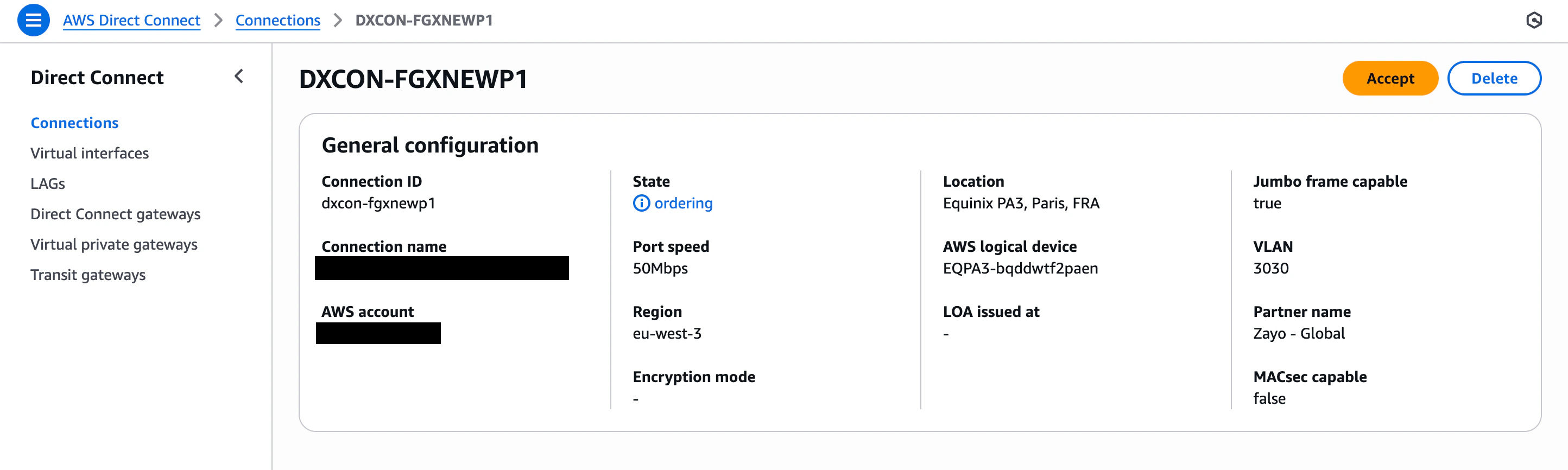 After acceptance, statuses typically progress from **Ordering** to **Pending** and then to **Available** once AWS completes provisioning (usually a few minutes).
## Step 3: Create AWS virtual interfaces (VIFs)
After the physical connection is available, create one or more VIFs to carry traffic:
* Private VIF for VPC connectivity
* Public VIF for AWS public services
* Transit VIF for AWS Transit Gateway (TGW)
Refer to AWS docs: [AWS Direct Connect virtual interfaces](https://docs.aws.amazon.com/directconnect/latest/UserGuide/create-vif.html).
## Step 4: Verify in DynamicLink
Return to the Cloud Routers page and verify your connection appears as **Available**.
## Next steps (routing)
Next, you will need to set up BGP and configure your Cloud Router ASN and peerings.
After acceptance, statuses typically progress from **Ordering** to **Pending** and then to **Available** once AWS completes provisioning (usually a few minutes).
## Step 3: Create AWS virtual interfaces (VIFs)
After the physical connection is available, create one or more VIFs to carry traffic:
* Private VIF for VPC connectivity
* Public VIF for AWS public services
* Transit VIF for AWS Transit Gateway (TGW)
Refer to AWS docs: [AWS Direct Connect virtual interfaces](https://docs.aws.amazon.com/directconnect/latest/UserGuide/create-vif.html).
## Step 4: Verify in DynamicLink
Return to the Cloud Routers page and verify your connection appears as **Available**.
## Next steps (routing)
Next, you will need to set up BGP and configure your Cloud Router ASN and peerings.