> ## Documentation Index
> Fetch the complete documentation index at: https://docs.zayo.com/llms.txt
> Use this file to discover all available pages before exploring further.
# MCP Server
The DynamicLink MCP (Model Context Protocol) server lets you connect any LLM to the DynamicLink platform.
Because those agents can also reach the other systems and data you control, they can correlate configuration and activity across your entire environment.
## Use cases
**Troubleshoot latency**\
Leverage your MCP-connected agent to analyze network and latency data from the DynamicLink platform with data from your own server cluster management tools.
**Frictionless multi-cloud networking**\
Connect the DynamicLink MCP alongside those from AWS, Azure, and GCP to a single AI agent.
From here you can build connectivity between clouds from one interface, no need to move between consoles.
**Autonomous security**\
Use anomaly detection to continuously monitor your data streams for emerging threats (for example, unusual high-volume outbound traffic on non-standard ports).
If your agent detects a potential threat, it can recommend a fix. If you approve the fix, you can deploy using the MCP server's control over DynamicLink's security and networking features to act automatically (for example, isolating the affected server).
**Build your own workflows**\
Connect your own tools and AI agents—Claude, internal scripts, whatever you use—directly to the open-standard MCP server.
You're no longer limited to the DynamicLink UI: vibe code the bespoke insights and automation your business actually needs.
## How to enable the MCP server
In the bottom navigation menu, select **Services > My Services**.
Next to the **MCP server** service, click the gear icon to find your token:
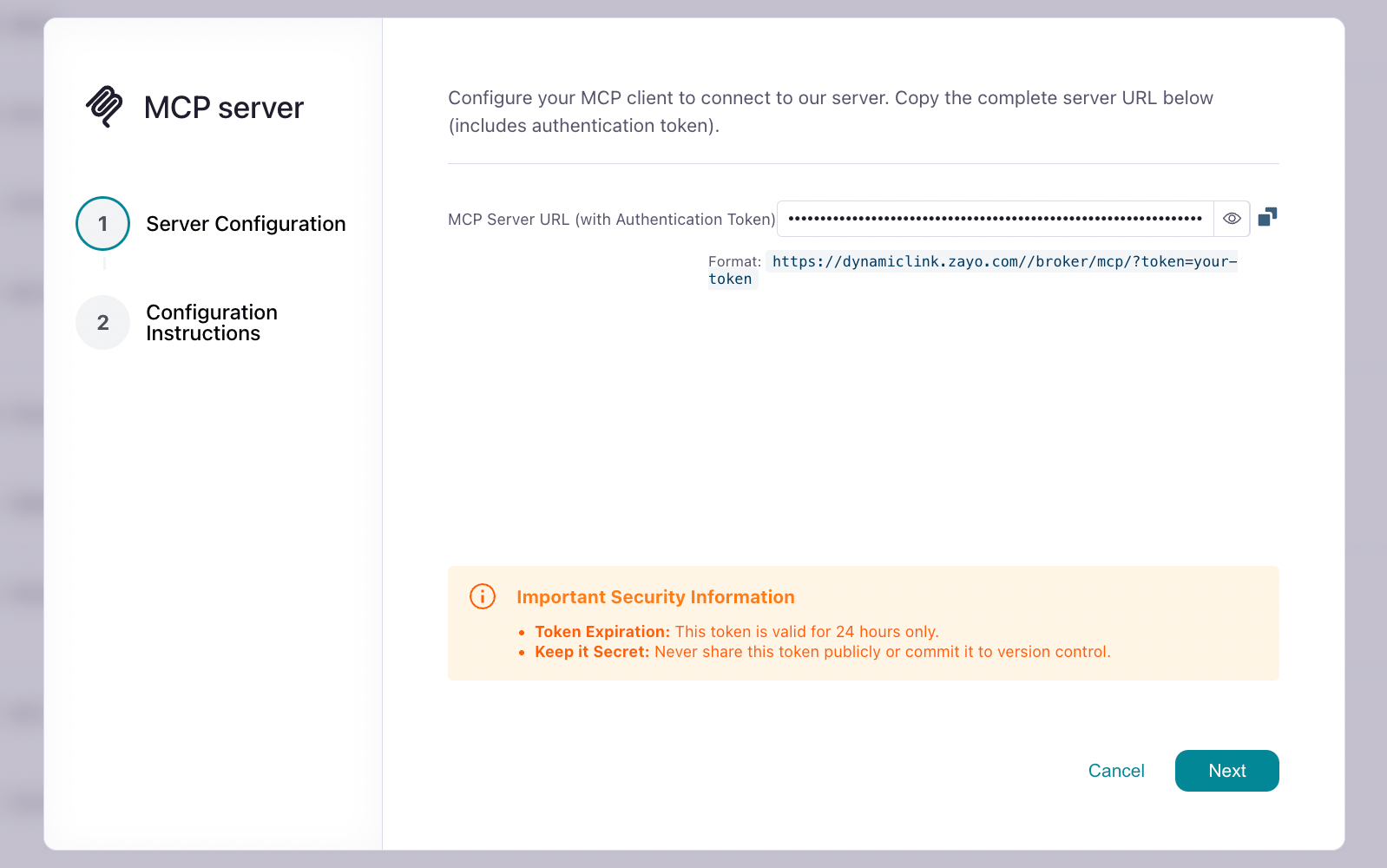
 From here you can find the URL and token required to configure your service: