

This guide provides you with the necessary information to understand, monitor, and manage DDoS protection on their assigned IPs and services using the NaaS Platform. The NaaS Platform offers real-time, automated mitigation to ensure service continuity during DDoS attacks.
1. Introduction
The DynamicLink DDoS Protection service continuously monitors your internet-facing connections and automatically blocks large-scale DDoS attacks. As a user, you will interact with a user-friendly interface to view and manage your protection based on pre-defined rules set by the operator.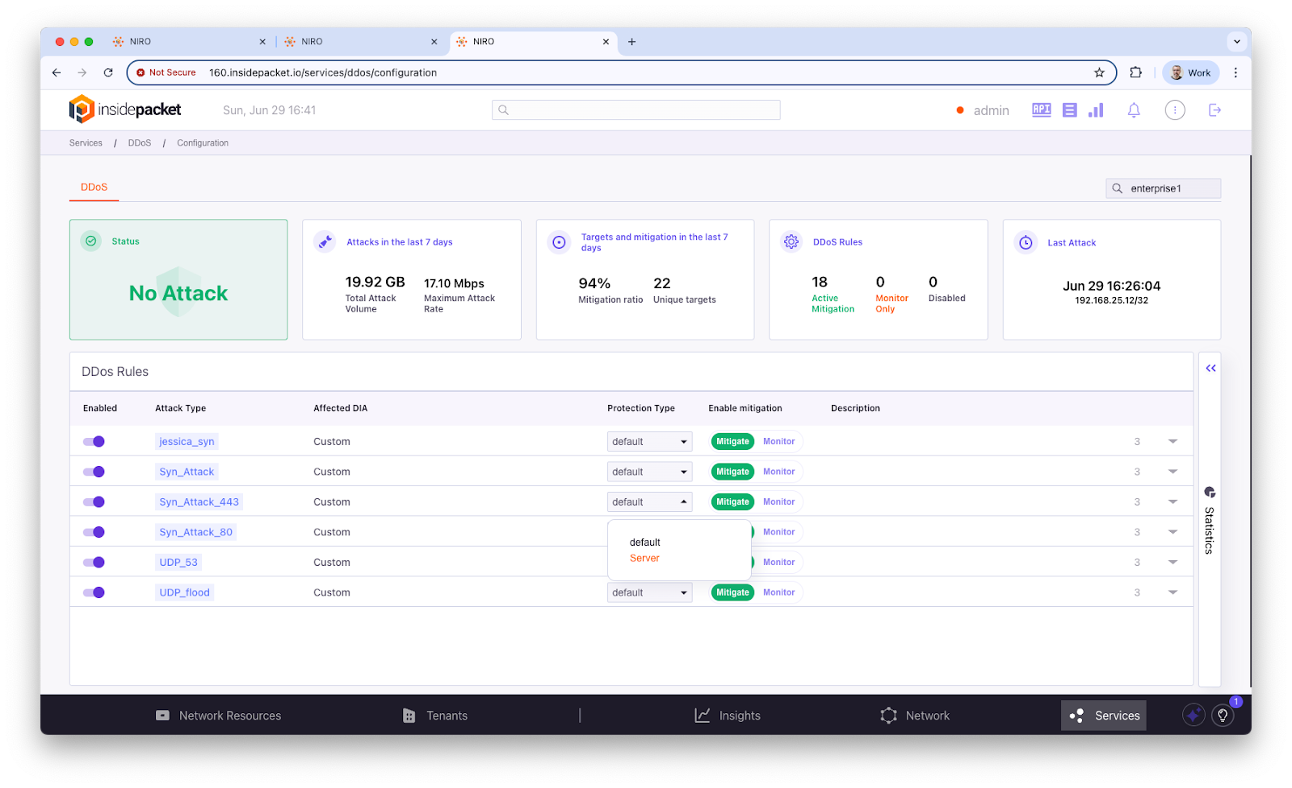
2. Access Requirements
To effectively use the DDoS protection service, ensure you meet the following requirements:- Valid tenant credentials: Provided by your system administrator.
- Network familiarity: Understanding of IP ranges and hosted services.
- Basic knowledge of common DDoS attack types.
3. Key Concepts
Familiarize yourself with these core concepts:- Mitigation Status: Indicates whether an IP is currently under protection.
- Thresholds: Limits set by the system administrator that trigger mitigation.
- DUA (Device Under Attack): Your IP currently being targeted by an attack.
- False Positive: Legitimate traffic mistakenly flagged as an attacker.
- Per IP Visibility: Each IP is tracked individually for accurate mitigation.
4. Enterprise Portal Overview
The Portal is your central hub for monitoring protected services.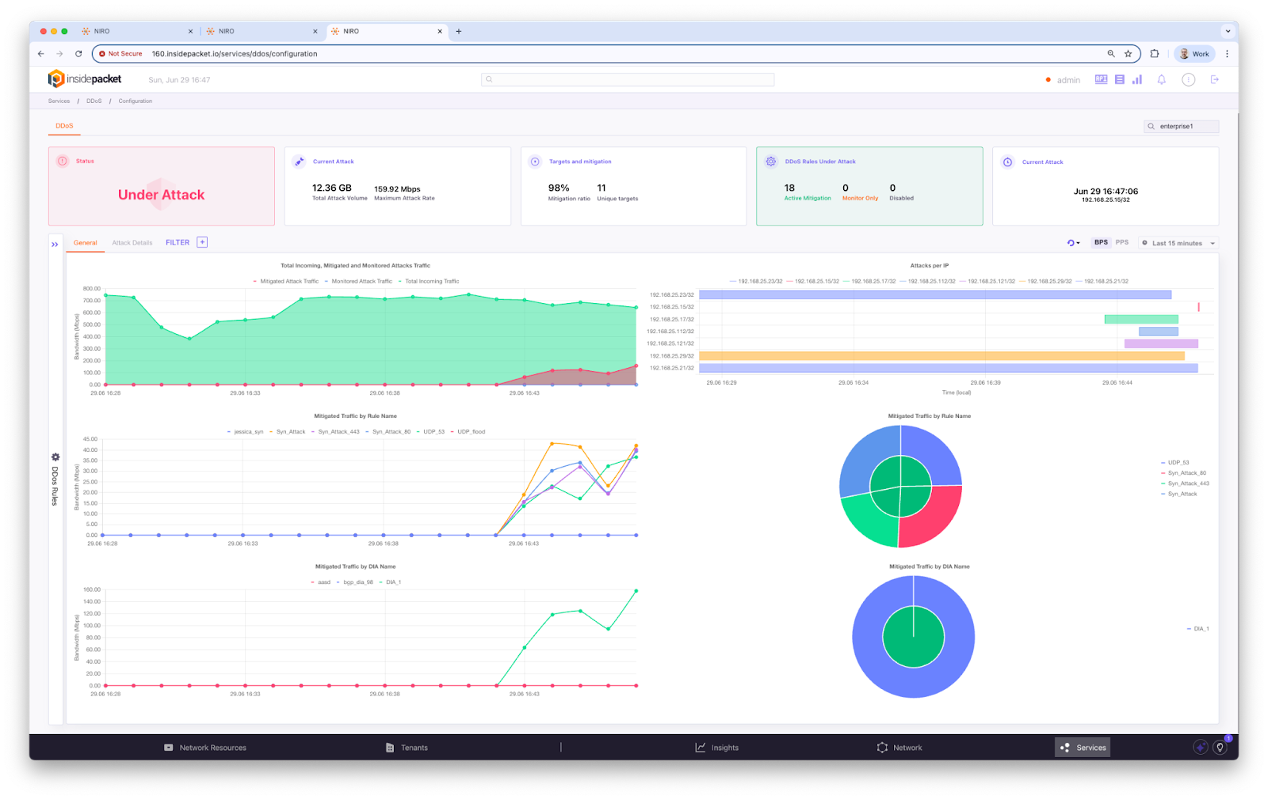
- Dashboard: Displays real-time and historical DDoS activity, active threats, protected IPs, and mitigation activity.
- Traffic View: Shows traffic trends per IP, both historical and real-time.
- Thresholds: Can be reviewed and, if permitted, adjusted.
- Logs: Available for download and review.
- Alerts: Notify you of detected threats and mitigation actions.
5. Daily Operations
Follow these steps for routine monitoring and management:5.1. Monitor Traffic
- Log in to the NaaS portal.
- Open Dashboard ⇒ Live View.
- Observe per IP trends and spikes.
5.2. Review Alerts
- Navigate to Alert ⇒ Recent Events.
- Filter by IP or timestamp.
- Acknowledge resolved alerts.
5.3. Export Reports
- Go to Logs ⇒ Export.
- Select format: CSV, JSON.
- Download for compliance use.
6. How to Use DDoS Protection
As a tenant, you have a simplified view of DDoS protection. Most complex logic is handled by your provider, but you can manage basic settings.6.1. Know Which Rules Apply to You
- Tenant Global Rules: Always on and cannot be changed.
- Tenant Template Rules: Can be enabled/disabled or switched to monitor mode if the option is provided.
- Tenant Specific Rules: Custom rules unique to your organization.
6.2. Manage Your Rules
- Go to NaaS portal ⇒ Services ⇒ DDoS display screen.
- View the available rules, each with a name and description.
- If a rule has options: - You may enable or disable it. - You may switch it to monitor mode to observe attacks without blocking. - You may apply the rule to specific IPs or subnets in your network.
7. DDoS Statistics
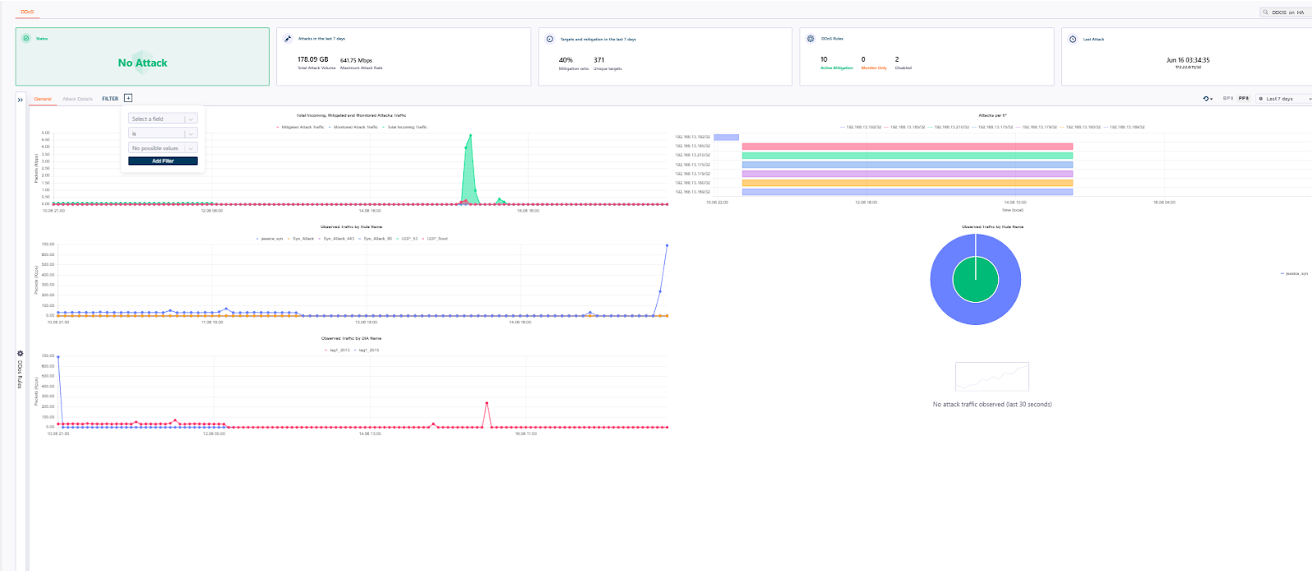
Access detailed DDoS statistics to monitor and analyze attack trends.7.1. Accessing DDoS Statistics
- Log in to the NaaS portal.
- Go to the left navigation panel ⇒ Click on Service.
- Select DDoS.
- The statistics dashboard will be displayed.
7.2. Top Summary Section
- Status: Real-time indicator (e.g., “No Attack” - green means no attack detected).
- Attack in last 7 days: Displays total mitigated traffic (in GB) and peak mitigation rate (in Mbps).
- Target & Mitigation Rate: Shows mitigation success rate (%) and unique attack targets over the past 7 days.
- DDoS Status Summary: Breakdown of current system status (Active Mitigation, Monitor Only, Disabled).
- Last Attack: Timestamp of the most recent detected attack.
7.3. Dashboard Tabs & Filter
- Tab (General/Attack Details): - General: Summary view of traffic, attack patterns, and mitigated flows. - Attack Details: Detailed session breakdown.
- Filter Panel: Apply filters by fields like Rule Name, DIA Name, Target IP.
- CSV: Export DDoS attack data for offline analysis.
7.4. Graph and Charts
- Total Incoming and Mitigation Traffic (Top Graph): - Green area: Successfully mitigated traffic. - Red Line: Unblocked attack traffic that passed through. - Blue Line: Total incoming traffic. - Use this to compare actual threats and mitigation effectiveness.
- Observed Traffic by Traffic Name: Traffic classification by protocol or service (e.g., DNS, ICMP, UDP Flood). Helps identify the nature of attack or abnormal traffic flow.
- Observed Traffic By Rule Name: Shows what traffic was flagged by which DDoS rule (e.g., ICMP_Flood, TCP_SYN). Useful for reviewing rule effectiveness.
7.5. Visualization Panels (Right Side)
- Attack per IP (Bar Chart): Horizontal bar showing targeted IP addresses and attack volume per IP.
-
Observed Traffic By Rule (Pie Chart): Breakdown of mitigated traffic by DDoS rule type.
 Figure 7: Visualization panels showing attack distribution by IP and rule type.
- Live Update Indicator: Message like “No attack traffic observed (last 30 seconds)” shows the current state of threat in near real time.
7.6. Time Selection (Top Right)
- Use the dropdown to change data granularity (Auto, 30s, 1m, 5m, 1h).
- Allows switching between BPS (Bits Per Second) and PPS (Packet Per Second).
- Time range: Last hour/last 7 days.
8. Use Case Scenarios
8.1. Use Case 1: SYN Flood Attack
- An alert is triggered on one of your web servers.
- Mitigation is automatically applied.
- You view affected IP and traffic patterns in real-time.
- Download a report for internal analysis.
 Figure 8: A diagram showing the workflow during a SYN Flood Attack scenario.
8.2. Use Case 2: UDP Reflection Attack
- You observe a sharp rise in UDP traffic from random sources.
- Mitigation is visible, and traffic is filtered.
- You confirm no DNS/NTP service degradation.