

Prerequisites
Before creating a Google Cloud Interconnect connection, ensure you have:- An active Google Cloud account with appropriate permissions.
- Compute Engine API enabled for your Google Cloud project.
- A VPC in your Google Cloud environment. For more information, see Google Cloud - Create and manage VPC networks.
- A DynamicLink port with available bandwidth.
Step 1: Create a partner interconnect VLAN attachment in Google Cloud
In the search field at the top of Google Cloud Console home page, enter “Interconnect” and select the product page. Go to the Interconnect page and click Create VLAN attachments. There are two types of partner interconnect VLAN attachments:- Encrypted: HA VPN over your connection. See HA VPN over Cloud Interconnect overview. Note that while this is supported on the Zayo NaaS platform, you will need to deploy and configure IPsec on-prem.
- Unencrypted: Unencrypted connections are still private and secure, but do not use VPN tunneling and do not require IPsec.
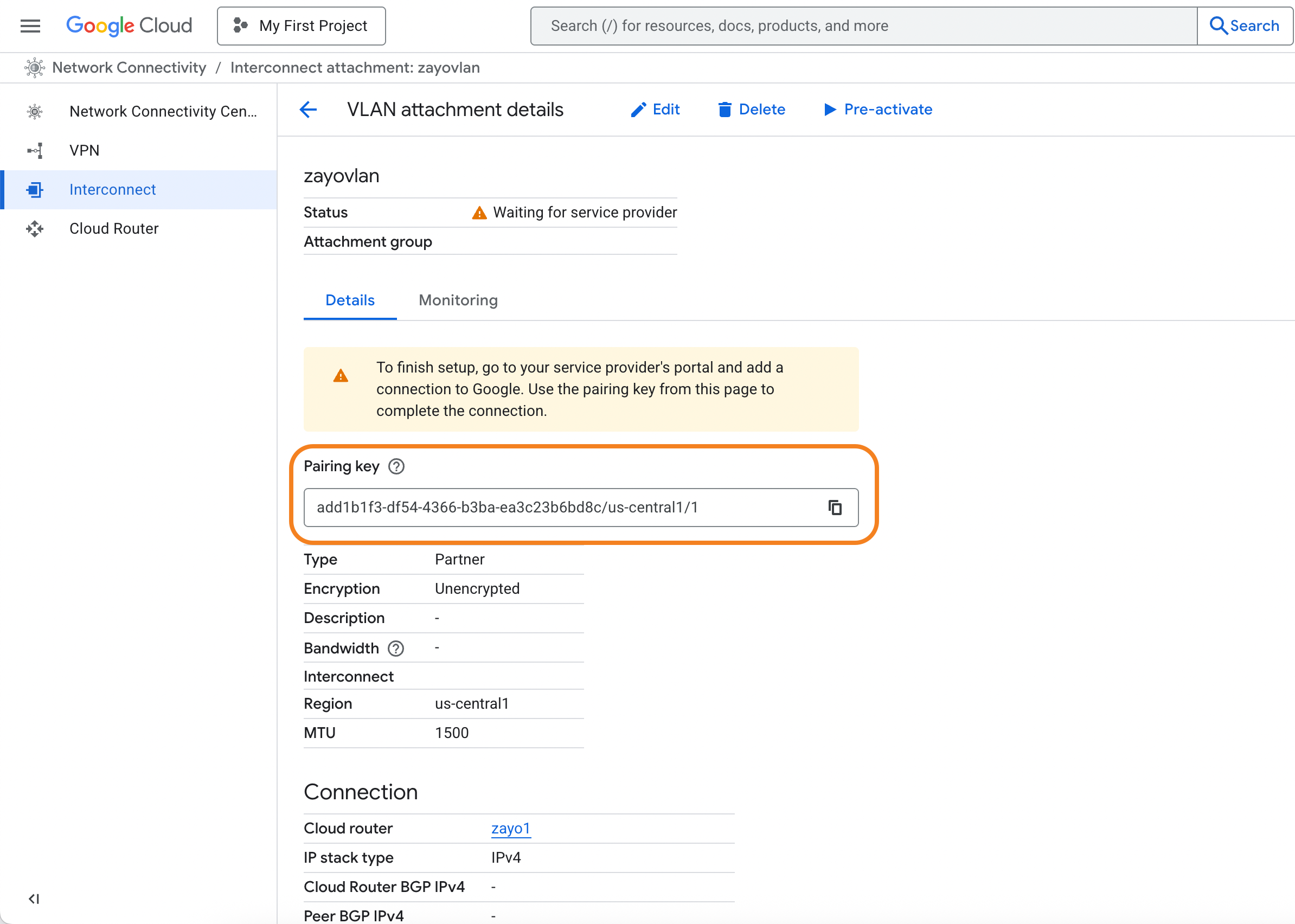
After you provision your interconnect, you will be provided a pairing key for each VLAN attachment.
Copy this key as you will need to provide it when setting up the connection in DynamicLink.
Step 2: Create the connection in DynamicLink
Once you have your pairing key from Google Cloud, return to the DynamicLink portal. Navigate to Build Your Network > Ports. Click Add a Connection in the upper right or click Add connection next to the port you are using. Complete the following fields: “A” Port Select Customer Port and then complete the following fields:
“Z” Port
Select Cloud Connection and then select Google. Complete the following fields:
Enter a connection name and then click Add.