First, you need to create an ExpressRoute circuit in the Azure portal. This is required to obtain a service key, which you will then use to provision your connection in DynamicLink.Log in to the Azure portal and use the search bar at the top to find the ExpressRoute circuits page.Click Create and then complete the following fields:Configuration
Field
Description
Subscription
Your subscription is created at the account level and determines how you are billed.
Resource group
A resource group acts like a folder that organizes related resources. You can use it to perform actions on multiple resources at once—for example, applying permissions, duplicating configurations, or deleting the entire group.
Each resource can belong to only one resource group, and each resource group is associated with a single subscription.
Select the Azure region that you want to use. This region represents the availability zone or data center in which a resource is located.
This region does not need to match your Zayo peering location. For example, you may want to choose the same region as other resources within your selected resource group.
Circuit name
Enter a name for the circuit.
Port type
Select Provider.
Peering location
Choose from the available on-ramp locations provided by Zayo.
The SKU and billing model apply only to Microsoft’s billing structure. Zayo billing is separate.
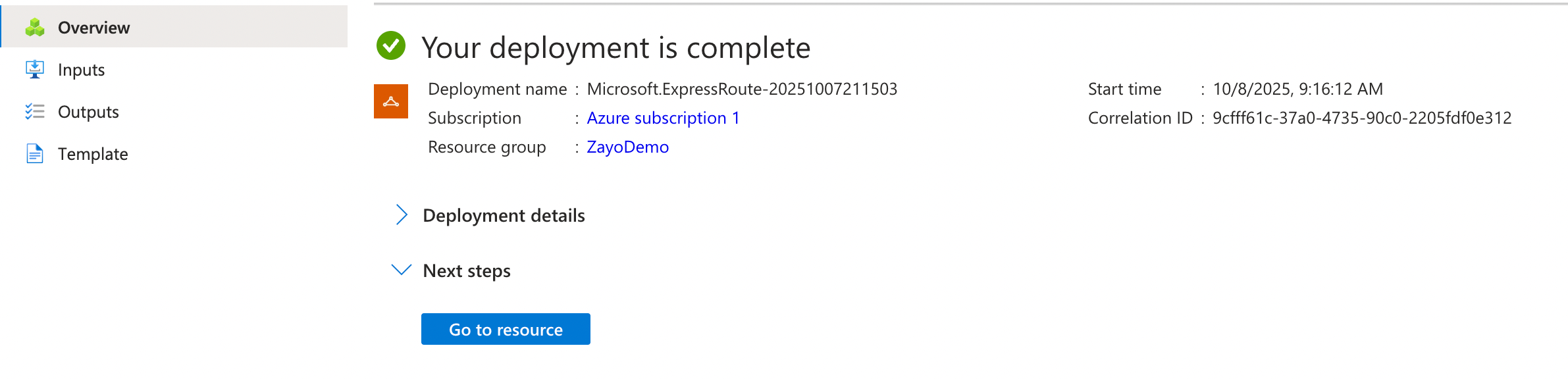
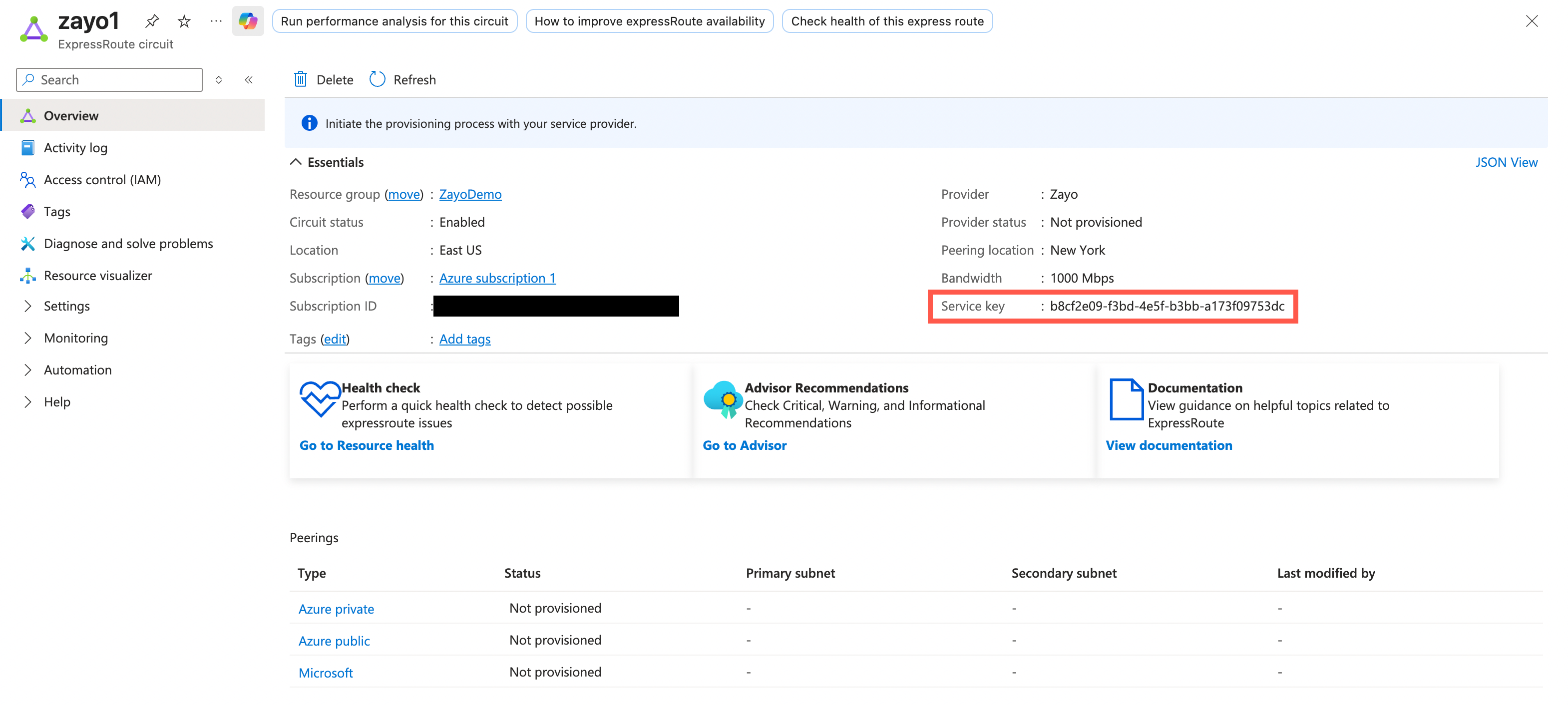
MonitoringHere you can enable monitoring rules to receive alerts when certain events occur, such as a drop in BGP availability or high bandwidth utilization.For more information, see Monitor Azure ExpressRoute.TagsHere you can add tags as name/value pairs. These can help you organize and sort resources across groups.For more information, see Use tags to organize your Azure resources and management hierarchy.Review + createConfirm your selections and then click Create.It may take a few moments for your ExpressRoute resource to deploy. When it’s complete, click Go to resource.From your resource list, select the ExpressRoute circuit you just created. From here, you find and copy the Service key:
Step 2: Create the Cloud Router connection in DynamicLink
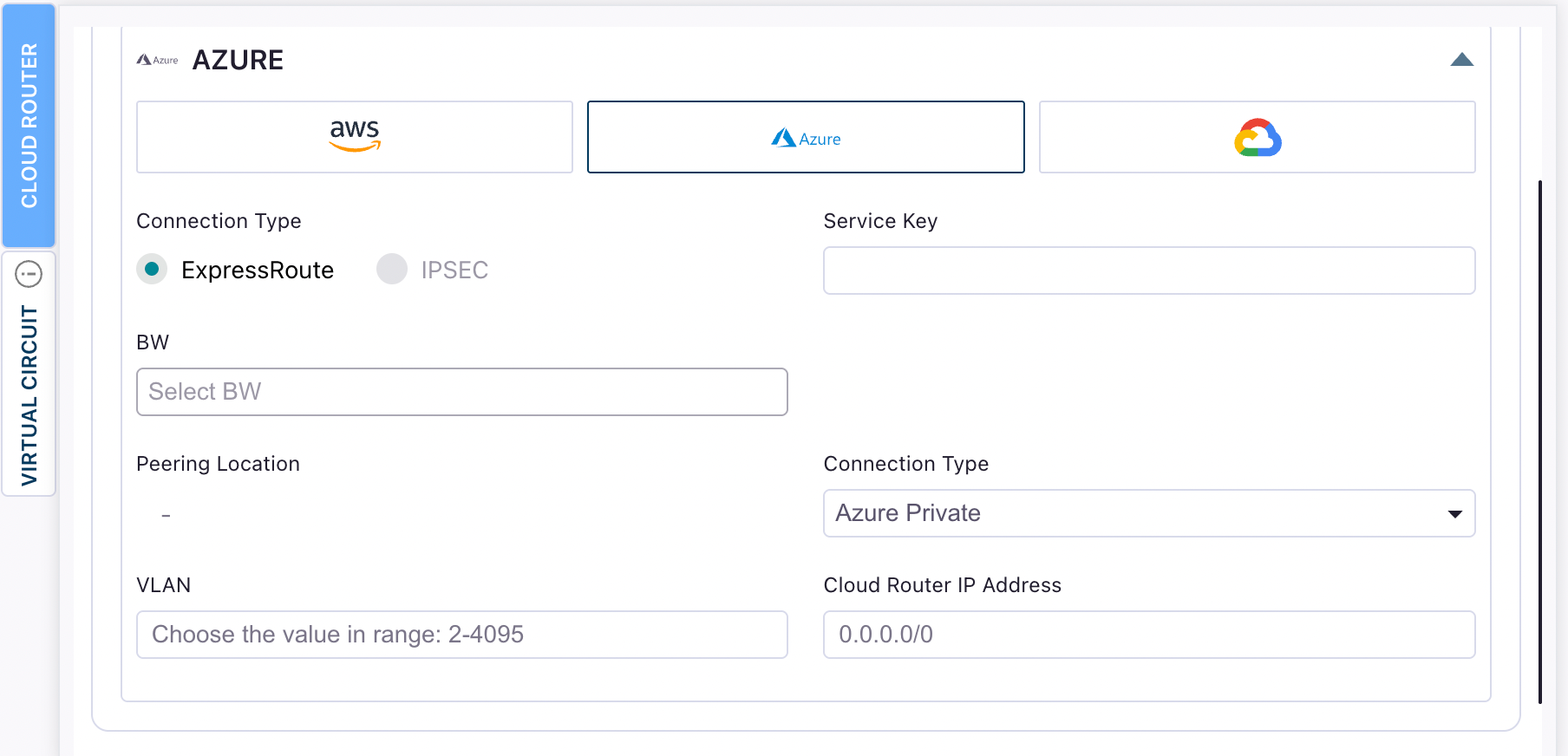
Once you have your ExpressRoute service key from Azure, return to the DynamicLink portal.Navigate to Build Your Network > Ports in the DynamicLink portal.Under Connections, click the Cloud Router vertical tab.Select Cloud Connection and then Azure:Complete the following fields:
Field
Description
Connection Type
At this time, we only support ExpressRoute connections.
Service Key
Enter the service key you copied from the Azure portal.
BW
This is automatically populated with the bandwidth you selected when creating your ExpressRoute circuit.
Peering Location
This is automatically populated with the peering location you selected when creating your ExpressRoute circuit.
• Azure Private Peering: For private virtual networks and Azure services. • Microsoft Peering: For accessing Microsoft services like Office 365 and Dynamics 365.
VLAN
Enter a VLAN that is unique to this circuit. You will use this when configuring peering in the Azure portal.
Cloud Router IP Address
The IP address that the Cloud Router will use for BGP peering with Azure. This is typically the customer-side IP address in a /30 subnet. When creating your ExpressRoute peering, you’ll specify both the Azure-side and customer-side IP addresses for the BGP session.
You can configure both peering types if your use case requires access to both private Azure resources and Microsoft services.
Enter a name for the connection and then click Add.