

This guide covers creating a Cloud Link to AWS, which is a direct port-to-cloud connection. If you need to connect multiple clouds or sites together through a shared routing domain, see Cloud Router to AWS instead.
Before you begin
Make sure you have the following ready before you start:1
A DynamicLink port with available bandwidth
You need an existing port in DynamicLink to serve as the “A” side (your side) of the connection. If you don’t have a port yet, see Ports to get one set up. Your port must have enough unused bandwidth to support the cloud link you want to create — for example, if your port is 1 Gbps and you already have 800 Mbps in use, you can allocate up to 200 Mbps to this connection.
2
An active AWS account
You need an AWS account with permissions to work with Direct Connect. At minimum, your AWS IAM user or role needs the
directconnect:* permissions (or the AWSDirectConnectFullAccess managed policy). If you’re unsure whether you have the right permissions, check with your AWS administrator. See Identity-based policy examples for Direct Connect.3
Your AWS account ID
This is the 12-digit number that identifies your AWS account. You can find it by clicking your account name in the upper-right corner of the AWS console. It’s displayed in the dropdown menu and looks like
123456789012.Step 1: Create the connection in DynamicLink
In this step, you’ll configure both sides of the connection: the “A” side (your DynamicLink port) and the “Z” side (the AWS cloud endpoint).- In the DynamicLink portal, navigate to Build Your Network.
-
Click Add a Connection in the upper right, or click Add connection next to the specific port you want to use.

Configure the “A” port (your side)
The “A” port is the DynamicLink side of the connection. This is your physical port. Select Customer Port as the connection type and complete the following fields:Configure the “Z” port (AWS side)
The “Z” port is the cloud side of the connection. This is where AWS Direct Connect will terminate.On-ramp selection
When you configure your Z port, you’ll need to select an on-ramp (region and site). A “cloud on-ramp” is a colocation facility that houses edge devices from a cloud provider. In this case, it’s a data center in which Zayo has already established a direct physical connection to AWS. When you select your region and on-ramp, consider where you are and where you want to go. For example, if you are located in Chicago (us-east-2) and you want to access an AWS-hosted resource in Seattle (us-west-2).
Option 1: Select an on-ramp location closest to where you are (us-east-2)
- Short access link, long WAN link
- Traffic travels over the AWS backbone
- You pay AWS for that backbone transit
us-west-2)
- Long WAN link via the DynamicLink backbone, then short hop into the site where you’re accessing your data
- You use DynamicLink’s network instead of AWS’s backbone for the long haul
Configure the Z port
Select Cloud Connection, then select AWS. Complete the following fields:
Click Add to submit the connection request.
Click the Cloud Links tab on the right to see your connection:
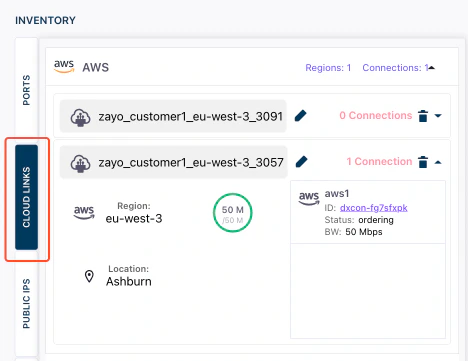
After you click Add, DynamicLink submits the connection request to AWS. The connection will appear on the Cloud Links page with an Ordering status. This is normal and it means AWS is processing the request. You may need to wait a few minutes before the connection is ready to accept from the AWS side.
Step 2: Accept the connection in the AWS console
Once DynamicLink submits the connection, it appears in your AWS account as a pending hosted connection. You need to accept it before it becomes active. You can navigate to the connection in two ways:Click the connection ID in DynamicLink
From DynamicLink > Build Your Network, select Cloud Links on the left. Find your connection and click the ID. This will open your AWS console Direct Connect page in a new tab.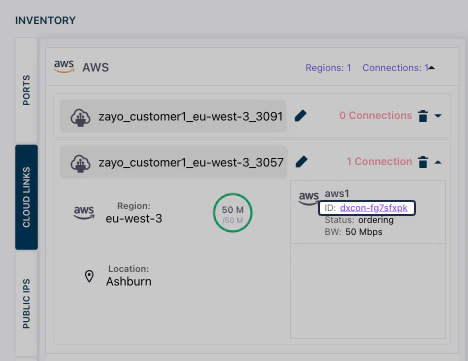
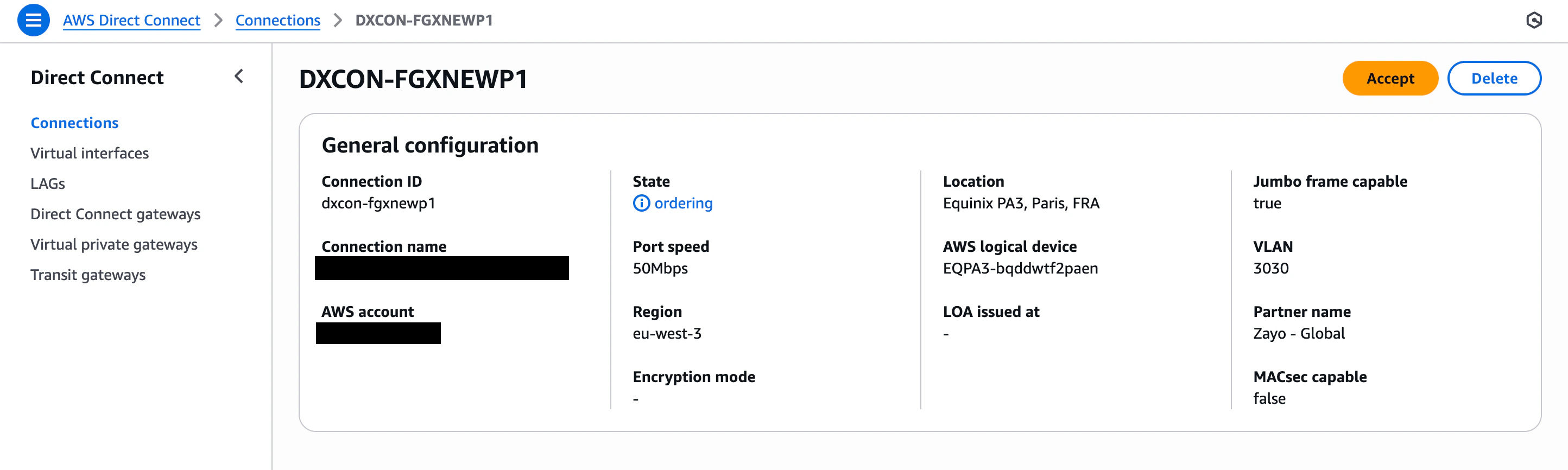
Find the connection in the AWS console
You can also find your connection by navigating to it in AWS. Log in to the AWS Management Console and then use the search field to find the AWS Direct Connect page.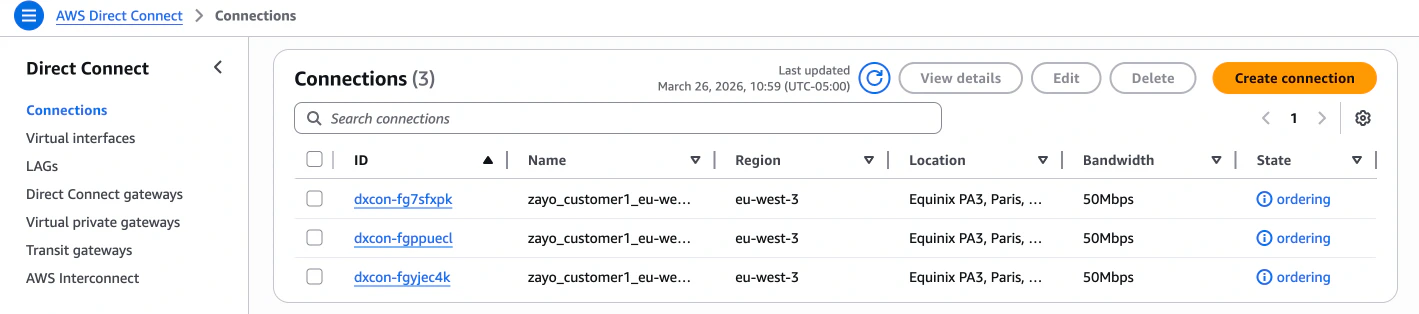
The transition from Pending to Available usually takes a few minutes.
Step 3: Verify the connection in DynamicLink
After you accept the connection in AWS, return to DynamicLink to confirm everything is in sync.- Navigate to Cloud Links in the DynamicLink portal.
- Locate your connection and check that the status has changed from Ordering to Available (or Active).
Step 4: Create a virtual interface (VIF) in AWS
Your Direct Connect connection is now active, but it can’t carry traffic yet. You need to create at least one virtual interface (VIF) to define how traffic flows between your network and AWS. Think of the Direct Connect connection as a physical road and the VIF as the lane markings that direct traffic to the right destination.Choose the right VIF type
If you’re not sure which type to use: most users start with a Private VIF to connect to a single VPC. You can always add more VIFs later.
Create the VIF in AWS
- In the AWS Direct Connect console, click Virtual Interfaces in the left sidebar.
- Click Create virtual interface.
- Select the type of VIF you need and fill in the required fields (such as the VLAN ID, BGP ASN, and the VPC or gateway you want to connect to).
Troubleshooting
Connection stuck in “Ordering” status
If your connection stays in Ordering status for more than 10 minutes:- Verify that the AWS account ID you entered in DynamicLink is correct (a common mistake is transposing digits).
- Make sure you’re checking the correct AWS region in the AWS console.
- If the issue persists, contact Zayo support.
Connection not visible in AWS console
- Double-check that you’re in the correct AWS region. The region selector is in the upper-right corner of the AWS console.
- Verify that you’re logged into the AWS account that matches the account ID you provided in DynamicLink.
- Ensure your IAM user/role has permissions for AWS Direct Connect.
Connection shows “Down” after acceptance
- The connection may still be provisioning on the AWS side. Wait 5–10 minutes and check again.
- If it remains down, verify that the DynamicLink port is active and that the VLAN configuration is correct.
VIF won’t come up
- Confirm that the Direct Connect connection itself shows Available before creating a VIF.
- For Private VIFs, verify that the Virtual Private Gateway is attached to your VPC.
- For Transit VIFs, verify that the Transit Gateway is in the same region as your Direct Connect connection.
- Check that your BGP settings (ASN, authentication) match on both sides.