When attached to a Cloud Router, your AWS Hosted Direct Connect can be share a routing domain with other cloud links and virtual circuits.

Prerequisites

Before you begin, ensure you have:
  • An active AWS account with permissions to accept Direct Connect connections
  • A DynamicLink port with available bandwidth
  • Your AWS account ID (12‑digit number)
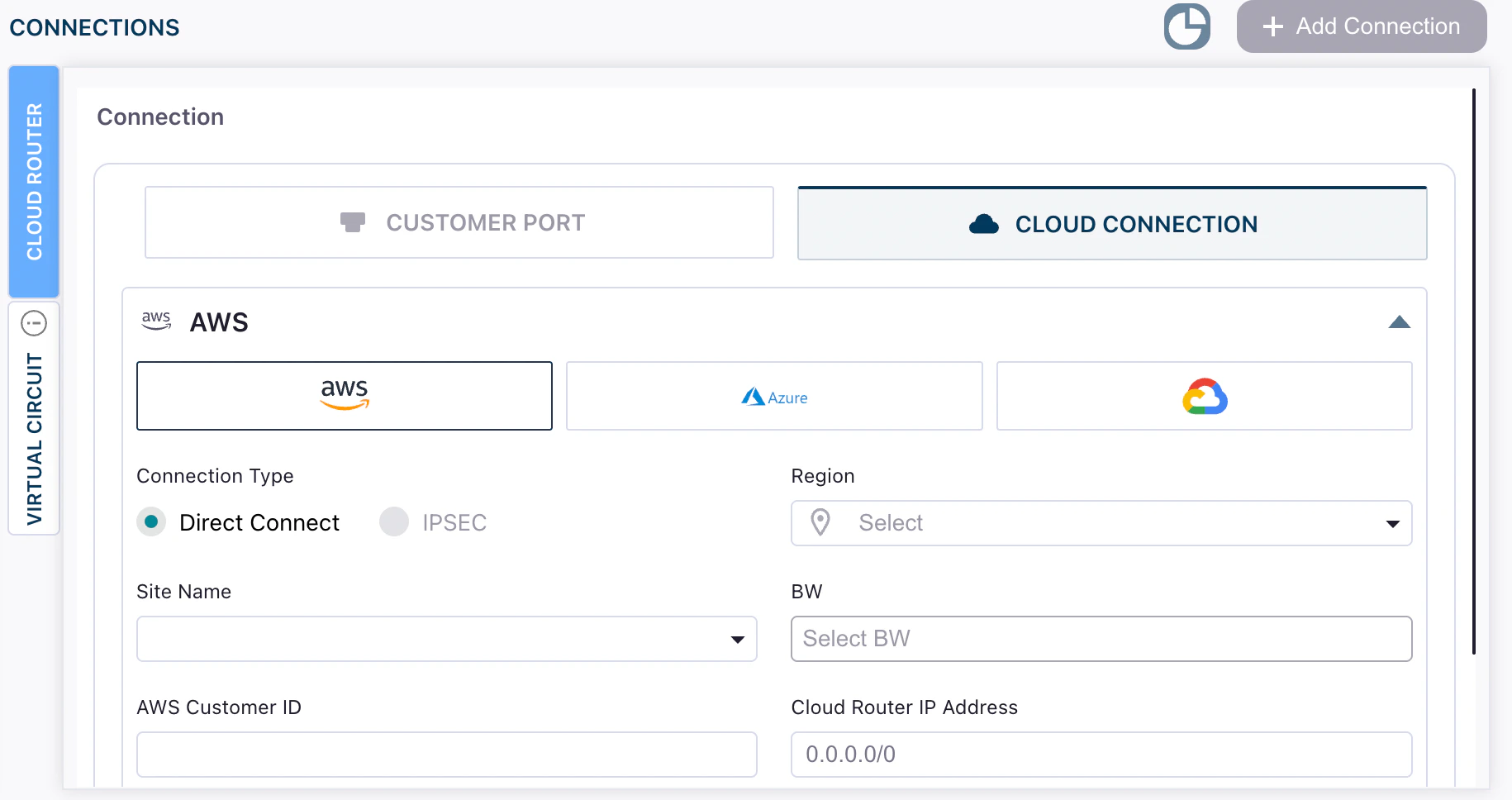
Navigate to Build Your Network > Ports in the DynamicLink portal. Under Connections, click the Cloud Router vertical tab. Select Cloud Connection and then AWS: Screenshot Complete the following fields:
FieldDescription
Connection TypeAt this time, we only support Direct Connect connections.
RegionAWS region of your VPC (e.g., us-east-1).
Site NameAn available site for the chosen region.
BWDesired bandwidth for the Direct Connect link.
AWS Customer IDYour AWS account ID (12 digits).
Cloud Router IP AddressThe IP address that the Cloud Router will use for BGP peering with AWS. This is typically the customer-side IP address in a /30 subnet. When creating your Virtual Interface in AWS, you’ll specify both the AWS-side and customer-side IP addresses for the BGP session.
Enter a name for the connection and then click Add.

Step 2: Accept the connection in AWS

  1. Log in to the AWS Management Console and open AWS Direct Connect.
  2. Locate the new connection (it will reference your DynamicLink account/username).
  3. Select the connection and click Accept.
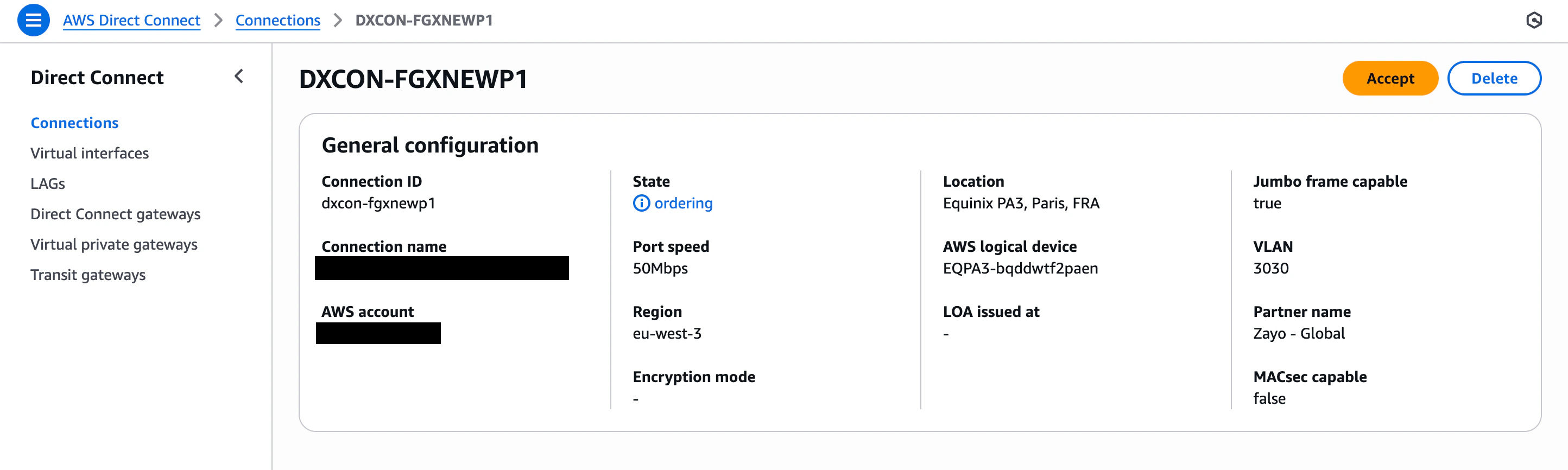
Screenshot of the Accept action
After acceptance, statuses typically progress from Ordering to Pending and then to Available once AWS completes provisioning (usually a few minutes).

Step 3: Create AWS virtual interfaces (VIFs)

After the physical connection is available, create one or more VIFs to carry traffic:
  • Private VIF for VPC connectivity
  • Public VIF for AWS public services
  • Transit VIF for AWS Transit Gateway (TGW)
Refer to AWS docs: AWS Direct Connect virtual interfaces. Return to the Cloud Routers page and verify your connection appears as Available.

Next steps (routing)

Next, you will need to set up BGP and configure your Cloud Router ASN and peerings.