

Use Case OverviewThis guide will walk you through how to provision Internet access by finding the right port, creating a Dedicated Internet Access (DIA) connection, ordering public IPs, configuring network settings, and setting up security features.
1
1. Finding the Right Port
Before you can add internet access, you need to identify and select the specific port you’ll be using in the Portal.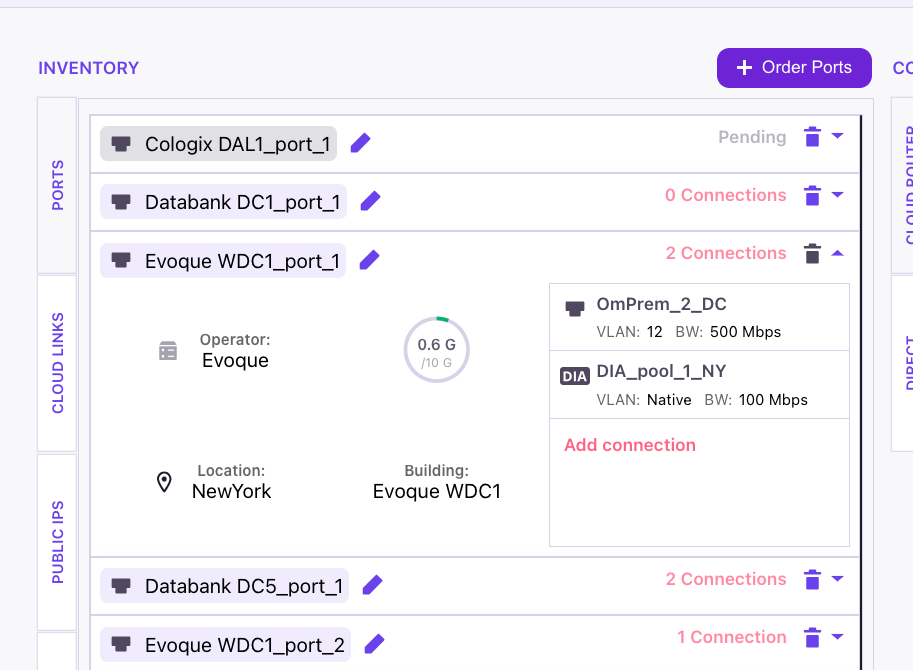
- Log in to the Portal.
- Navigate to the Build Your Network section.
- From the left-side inventory menu, choose Ports. This will display a list of your existing ports.
- Select the port you intend to use for internet access and review its details (connection type, location, etc.).
- Confirm that the Available Bandwidth (BW) on the port is sufficient for your planned internet access speed.
A Port must be deployed in the physical location where you wish to route traffic.
2
2. Creating a DIA Connection & Ordering IPs
A Dedicated Internet Access (DIA) connection provides reliable, symmetrical bandwidth. This process includes ordering the necessary Public IP addresses required for external connectivity.
- In the connection setup screen, select the Direct tab, as a DIA is a direct connection.
- Choose your desired port from the inventory and click Add Connection. The A-Side of the connection will be populated automatically.
- Configure VLAN: Enter an unused VLAN ID or select “Native” for an untagged connection. This VLAN will deliver the DIA service on your port.
- Select Bandwidth: Choose your desired bandwidth from the dropdown menu.
- Assign Public IPs: For the Z-Side, select the DIA Internet tab. Use the “Public IP” dropdown to select or request a block of public IPs for your chosen location.
- Finalize: Enter a descriptive name for the connection and click Add to complete the setup.
Manual Public IP Reservation: You can order Public IPs in advance from the Public IPs tab in your inventory. This is useful for network planning before a port is physically available.
3
3. Configuring the DIA Firewall and Web Filtering
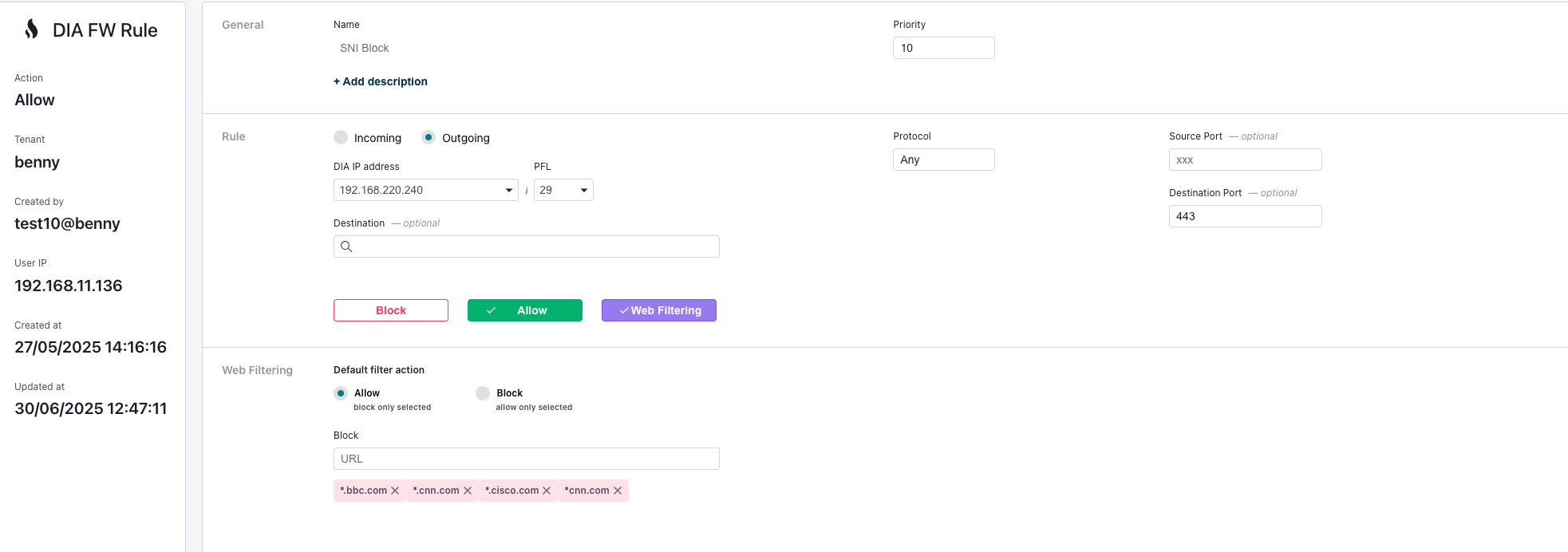
The DIA Firewall protects your connection by filtering traffic. By default, it allows all outgoing traffic and blocks all incoming traffic. Web filtering provides granular control over web access.
- From the left-hand menu, navigate to My Services and ensure the DIA Firewall service is enabled.
- Under the Service menu at the bottom, select DIA Firewall.
- Click the + button next to your DIA’s name to create a new rule specific to that connection.
-
Complete the Firewall Rule Form:
- Name: Give the rule a unique name (e.g.,
Allow-SSH-Inbound). - Priority: Set a priority (lower numbers are processed first).
- Direction: Choose
IncomingorOutgoing. - Source/Destination: Specify IP addresses and ports.
- Action: Choose
Block,Allow, orWeb Filtering.
- Name: Give the rule a unique name (e.g.,
- If you select Web Filtering, you can define specific URLs or patterns to allow or block, which is ideal for managing access to specific services like OS update servers.
-
Click Add to save and activate the rule.
4
4. Configuring NAT with the Cloud Router
Network Address Translation (NAT) allows devices in the private IP space of the Cloud Router to access the internet using the public IP of your DIA connection.
- Under the Service menu at the bottom, select NAT.
- Click the + Add button to create a new NAT rule.
- Name the rule and select the Type as
Source NAT. - For the Inside field, specify the internal IP range that will use this rule.
- For the Outside field, choose the DIA connection you created earlier.
- Optionally, add protocol and port filters to further restrict traffic.
- Click Add to save the rule.
5
5. Verifying Network Status with the ARP Table
The ARP (Address Resolution Protocol) table is useful for Layer 2 troubleshooting, showing which devices have been learned on your network interfaces.
- Navigate to Network, then DIA.
- Select the ARPs tab.
- Here you can view a table of active ARP entries, including the IP address, corresponding MAC address, virtual interface (your DIA name), and age of the entry.
- Observing multiple IPs mapped to a single MAC address can indicate they belong to a single router interface or physical device.
6
6. Enabling DDoS Protection
DDoS protection safeguards your network from distributed denial-of-service attacks.
- Under the Service menu at the bottom, select DDoS.
- The main screen displays the current attack status. A green tile indicates “quiet time,” while a red tile indicates an ongoing attack.
- During an attack, you can view details and traffic graphs showing clean vs. mitigated traffic.
- Click the >> icon to open the DDoS Rules screen, where you can modify protection types or switch rules to a “monitor only” mode.
Congratulations! You have successfully created a new, fully protected DIA connection.