

What You’ll AccomplishThis guide will walk you through the process of provisioning a private, point-to-point Layer 2 circuit between two data center ports on the DynamicLink NaaS platform.
1
Navigate to Ports
Start by logging into the DynamicLink portal. From the main dashboard, click on the Build Your Network tab, and then select Ports from the sub-menu.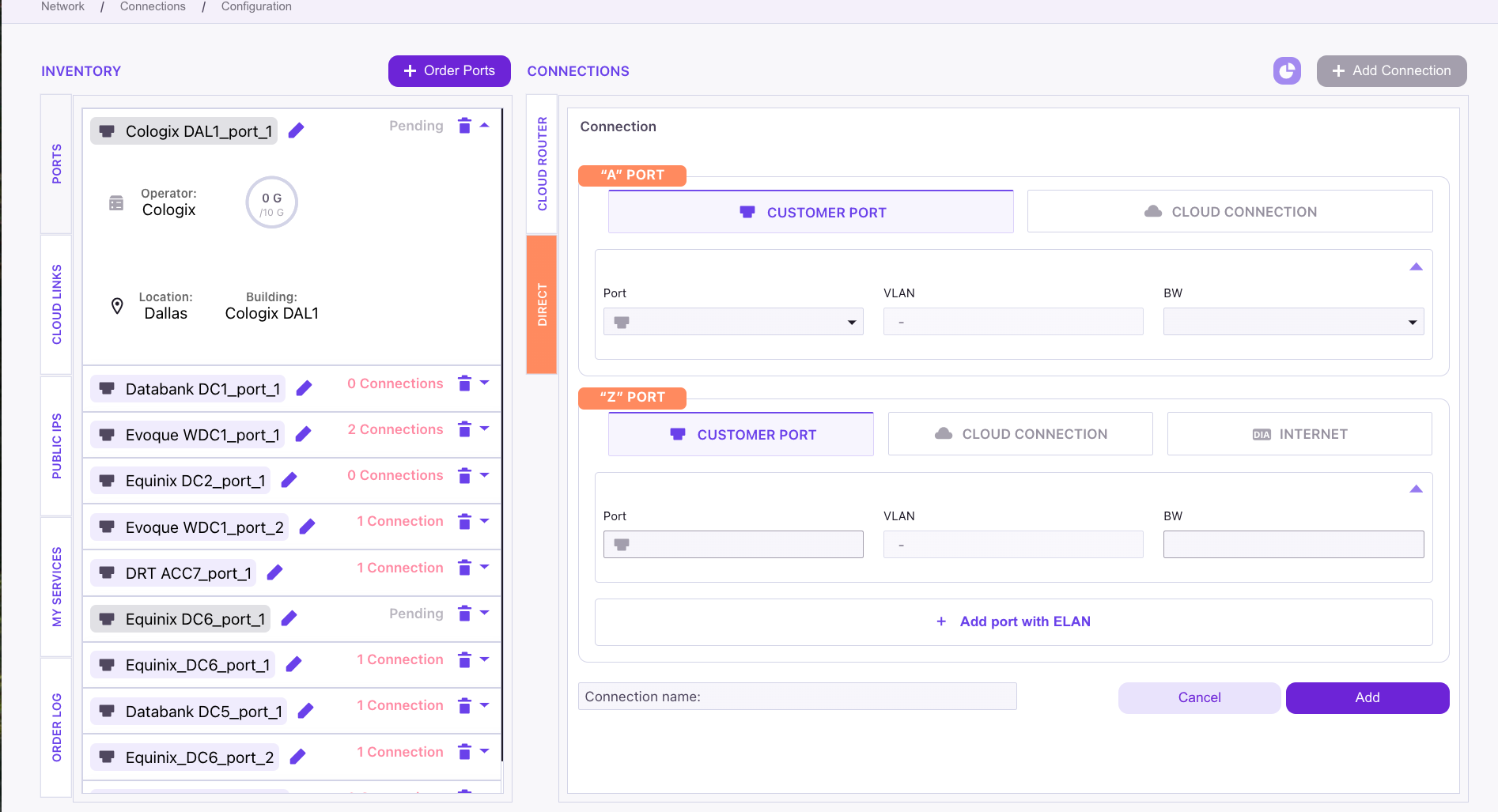
2
Check Port Availability
Before creating the connection, it’s crucial to verify that both the A-side and Z-side ports have enough capacity. Review the
Available Bandwidth for each port to ensure there is sufficient bandwidth for your new circuit.3
Configure the A-Side Port
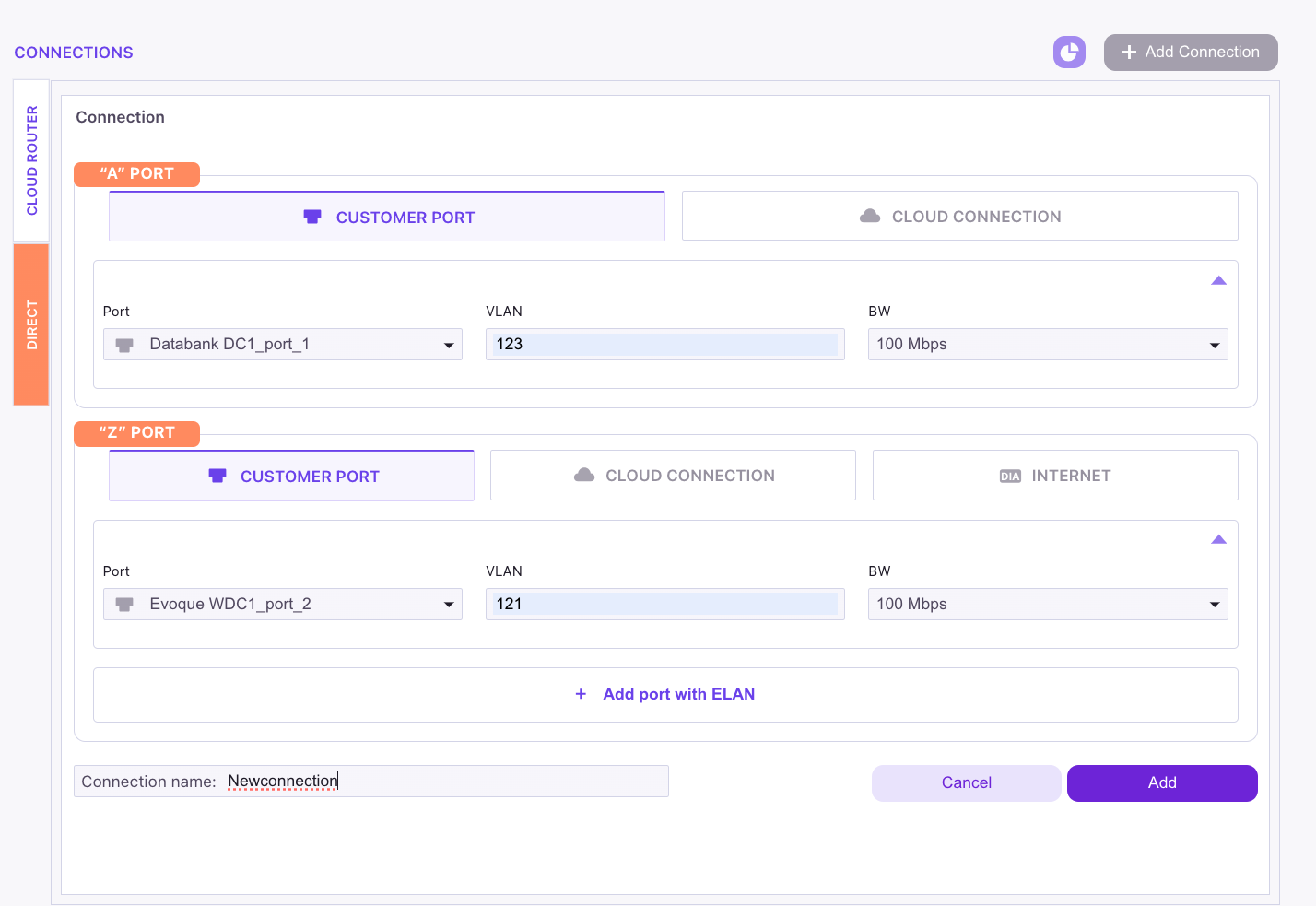
- Locate the first port for your connection and click the Add a Connection button next to it.
- The port name will be automatically populated.
- Choose an available VLAN from the dropdown menu.
- Specify the desired bandwidth for the connection (e.g.,
1 Gbps).
4
Configure the Z-Side Port
- In the Z-port section, select the second data center port you wish to connect to.
- Choose an available VLAN from the dropdown menu. Ensure this VLAN has not been used previously on this port.
- The bandwidth will automatically match the value you selected for the A-side port.
5
Name and Finalize the Connection
- Provide a meaningful and easily identifiable name for your new connection in the
Connection Namefield. - Review all the details to ensure they are correct.
- Click the Add button at the bottom of the page to finalize the setup and create the connection.